

Install Red Caucus while on Wi-Fi before Caucus Night
- Go to https://redcaucus.utgop.org/
- If this is your first time opening this link, you may see an option to “Install RedCaucus App”. We recommend installing it as an app on your device so it is easy to find and re-open while offline. However, you can also use it in a web browser. (see FAQ below)
- Follow the instructions on the screen when you click “Install”. When prompted, enter your Full Name, Email, Phone.
- Under the “Role” field, select either “Credential User” or “Help Desk”. (see FAQ below)
- Click “Next”
- Read the Acceptable Use & Data Protection Agreement, click the checkbox, and click “I Agree”.
- Set a 4 digit pin and confirm it.
- Select “Utah” for your county.
- Select your house district.
- Select your Caucus Venue by looking yourself up in Precinct Portal- Precinct Locator.
- We recommend selecting “All Precincts” at your venue so you can see and redirect voters to the correct room if they come to yours in error.
- Click “Request Authorization”.
- Continue below.
FAQ: 'How do I download it as an app? It just looks like a web page on the internet.'
FAQ: 'How do I download it as an app? It just looks like a web page on the internet.'
- How it works: Red Caucus is a Progressive Web App, which means it’s really just a web page that can work offline and be installed on your device like an app. You do not need to download it from the Google Play Store or Apple App Store.
- When you open the Red Caucus web page for the first time, it usually gives you an option to “Install RedCaucus App”. All this does is save the webpage as a “web app” on your device. It usually will show up under the “Apps” menu and appear as an app on your device’s home screen.
- You may not see the “Install” button depending on your browser, or if you dismiss it the first time you see it. If that happens, you can still save it as an app from your web browser:
Chrome on Android (phone, tablet)
Chrome on Android (phone, tablet)
- Go to https://redcaucus.utgop.org/ on the Chrome browser on your Android device.
- Open the “three dots” (…) menu in the top right corner of the Chrome page.
- Click “Add to Home screen”, as shown below.

- Click “Install”, as shown below.

- You should see the app appear in its own window on your screen, as shown below.
- Even if you have already previously signed in, you may be prompted to do it again now. Now that the app is installed, it’s treating it as a new login. Follow the instructions at the top of the Credentialing tab. Otherwise, enter your previously created 4 digit pin if prompted to do so.

- You should now see the Red Caucus icon appear on your home screen, appearing as an app.
Chrome on Windows (laptop)
Chrome on Windows (laptop)
- Go to https://redcaucus.utgop.org/ on the Chrome browser on your Windows laptop.
- Open the “three dots” (…) menu in the top right corner of the Chrome page.
- Hover over “Cast, save, and share”.
- Click “Install RedCaucus”, as shown below.

- Click “Install” on the pop-up window that appears, as shown below.

- You should see the app appear in its own window on your screen, as shown below.
- Even if you have already previously signed in, you may be prompted to do it again now. Now that the app is installed, it’s treating it as a new login. Follow the instructions here. Otherwise, enter your previously created 4 digit pin if prompted to do so.
- You should now see the Red Caucus icon on the bottom menu bar and/or the apps menu.

Safari on IOS (iPhone, iPad)
Safari on IOS (iPhone, iPad)
- Go to https://redcaucus.utgop.org/
- Open the menu that includes the “Share” icon as shown in the screenshot below. Click “Share”.

- On the “Share” menu, click “Add to Home Screen” (not pictured here).

- Make sure “Open as Web App” is selected as shown above, or else it will just keep opening in the Safari web browser.
- Click “Add”.

- Even if you have already previously signed in, you may be prompted to do it again now. Now that the app is installed, it’s treating it as a new login. Follow the instructions here. Otherwise, enter your previously created 4 digit pin if prompted to do so.
- You should now see the Red Caucus icon on the home page of your device like an app.
Safari on Mac OS (laptop)
Safari on Mac OS (laptop)
- Go to https://redcaucus.utgop.org/ on Safari on your Mac laptop.
- In the top right corner, click the “Share” icon.
- Click “Add to Dock”.
- A pop up window will appear. Make sure the name is Red Caucus. Click Save.
- Even if you have already previously signed in, you may be prompted to do it again now. Now that the app is installed, it’s treating it as a new login. Follow the instructions at the top of the Credentialing tab. Otherwise, enter your previously created 4 digit pin if prompted to do so.
- You should now see the Red Caucus icon on the Dock at the bottom of your screen.
FAQ: 'How can I use Red Caucus while at my caucus location with no Wi-Fi?'
FAQ: 'How can I use Red Caucus while at my caucus location with no Wi-Fi?'
Red Caucus is a Progressive Web App, which means it’s really just a web page that can work offline and be installed as an app on your device.
- Follow the instructions at the top of this page and above in “FAQ: How do I download it as an app?…” if needed.
- How does it work? When you download the app or sign into the web browser while on Wi-Fi, it downloads your encrypted voter list to your device so you can still credential people even if you have no Wi-Fi or cell service at your Caucus location. (Don’t close the internet browser by accident while offline! You won’t be able to re-open it if you have no Wi-Fi, but it should save your progress.)
- You MUST sync the data you collect to the internet before the end of the night: The credentialed voters data you save in Red Caucus will save locally to the app or web page on your device, but it MUST be synced over the internet / Wi-Fi to the Utah Republican Party secure server before the end of Caucus Night.
- The app or website will attempt to sync the data to the internet every 10 minutes AND after credentialing every 10 voters. If it can’t find an internet connection, a queue of credentialed voters to be synced will build up on your device, which you’ll be able to see. You must eventually sync by connecting to the internet. If you close the app or web page, it should save your un-synced data until you log back in with your 4 digit pin.
FAQ: 'What devices or web browsers does it work on?'
FAQ: 'What devices or web browsers does it work on?'
Red Caucus is generally known to work on the following, but we strongly recommend testing on your own device:
- Chrome on Android (phone, tablet)
- Chrome on Windows (laptop)
- Safari on IOS (iPhone, iPad)
- Safari on Mac OS (laptop)
- Firefox on Windows (laptop)
- Windows 10 and 11 Devices that may have issues, we strongly recommend testing on your own device:
- Some Android tablets, such as Samsung- may not function properly, may not be able to use “landscape” view.
- Linux machines- not tested but may have issues saving as a web app, etc.
- Phones or devices with a very old operating system version (if you haven’t updated it in a long time) Not thoroughly tested yet:
- Brave browser works on some devices but may experience issues on others. The same goes for any other internet browser not explicitly mentioned in this section.
FAQ: 'Should I select 'Credential User' or 'Help Desk' as my role during set up?'
FAQ: 'Should I select 'Credential User' or 'Help Desk' as my role during set up?'
- There are 2 distinct roles available for a Red Caucus user. You will choose one when signing in and it can’t be changed unless you “NUKE” (reset) the app / web page.
Warning: Don’t NUKE it unless you know all of your credentialed voters have synced AND you have internet access to re-install.
- Credential User role: credential all voters if their voter registration already exists in the UTGOP database (95% of voters).
You can only scan Precinct Portal QR codes on the Credential User role. (The QR code is emailed to a voter if they pre-registered for caucus.)
- Help Desk role: can do everything the Credential User role can do (minus scan QR codes), PLUS:
- Find “withheld” (private) voter registrations so the person can participate in Caucus.
- Register new voters
- Manage address and name changes
How to handle every credentialing scenario in Red Caucus
The following information pertains to all of the following:
Follow these flow charts to understand when to use the different features of ‘Credential User’ and ‘Help Desk Mode.
Note on Credential User role: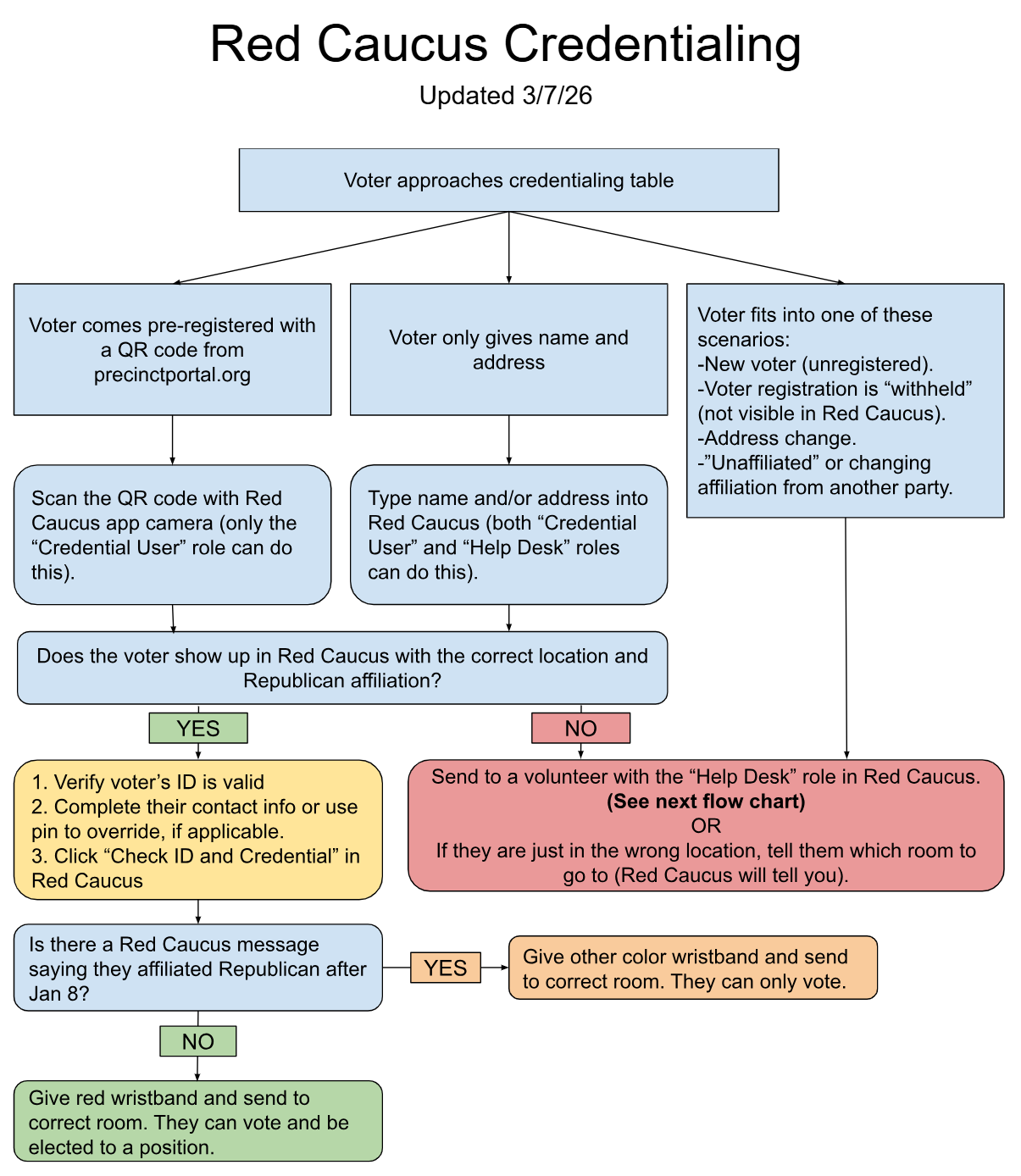
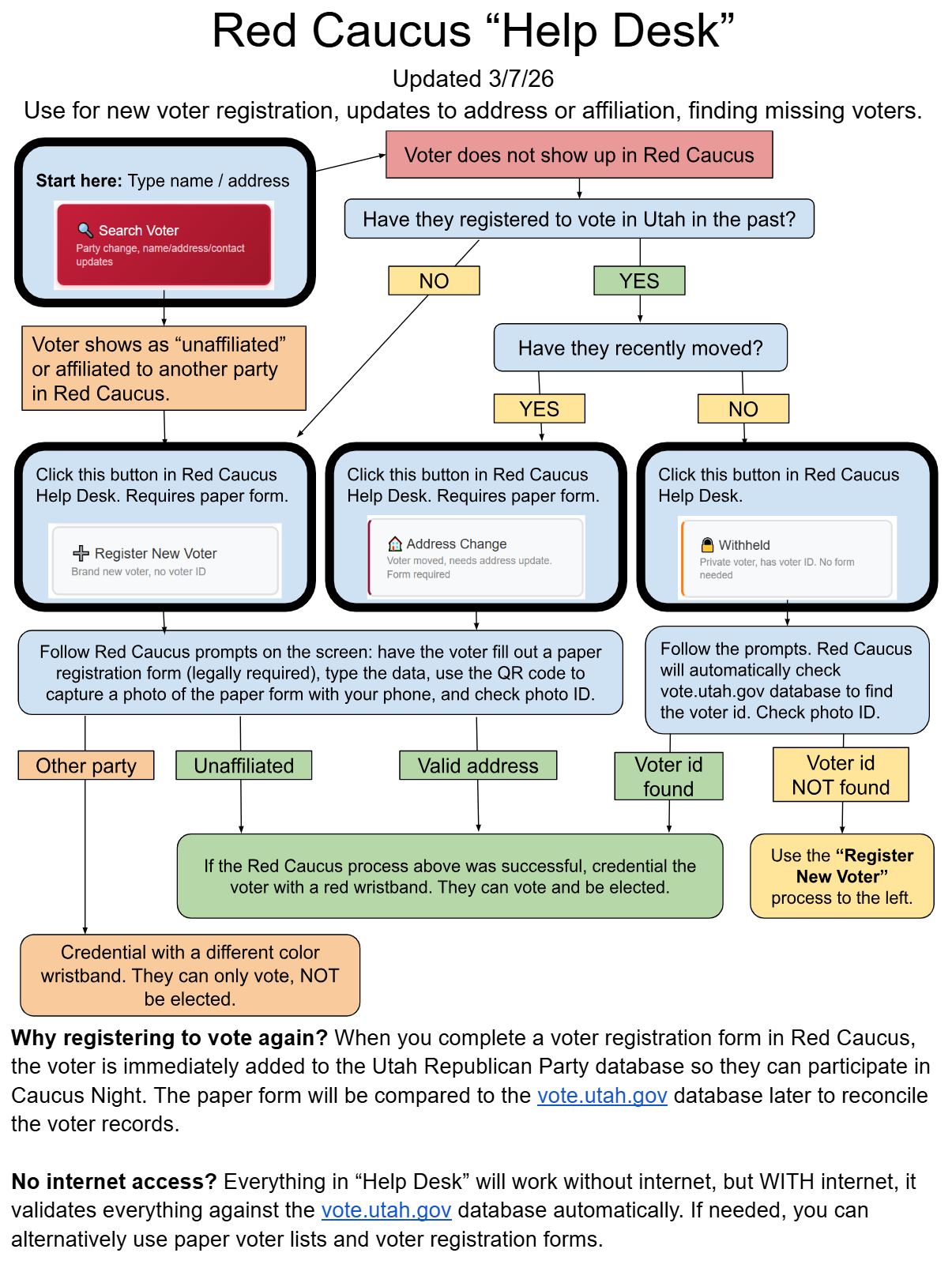
- Testing
- Training
- Credentialing in real-time on Caucus Night.
More detailed training videos and FAQs are available within the Help Desk role by clicking on the menu in the upper right hand corner.
FAQ: 'How do I test before March 17 without messing up the data for Caucus Night?'
FAQ: 'How do I test before March 17 without messing up the data for Caucus Night?'
Your real data is available to test with now. You can test all of the scenarios, including clicking “Credential” on a real voter. However, everything you do during testing will be reset on March 17 at 3pm, before credentialing begins. You will not need to be on Wi-Fi for your app or web page to reset.
FAQ: 'Why do some voters not show up in Red Caucus if they are visible in Voter Click or vote.utah.gov?'
FAQ: 'Why do some voters not show up in Red Caucus if they are visible in Voter Click or vote.utah.gov?'
There are 3 distinct databases of voter information used for different purposes. Work has been done and will continue in 2026 to sync them as much as possible.The 3 databases:
- Utah County Republican Party: VoterClick
- This is the long-standing database used by UCRP to organize all county precinct and leadership information. You will find your 2024 Caucus Attendee lists and 2026 updated voter lists here, but there may be a small amount of discrepancy with the other databases. This data is synced with the Utah County government voting data and merged with UCRP organizational data. For example, if you are a county delegate, etc.
- Utah Republican Party (UTGOP): Precinct Portal & Red Caucus
- This is the database used by the state party to manage caucus voting. This is what Red Caucus uses. It should have 95%+ of the voters, and the remaining ones can be verified or registered using the Red Caucus Help Desk role. If you use the “Register Voter” features of the Help Desk role, you are first adding the voter information to this database so it can be used in real-time to let someone in to participate in the Caucus Night immediately. Later, voter registration data will be reconciled to the State database.
- State (Lieutenant Governor’s office): vote.utah.gov
- This is the official database run by the state government for keeping track of voters in general elections, etc. If a voter has chosen to have their voter registration information “withheld”, this is where it is maintained in its complete form. The Red Caucus Help Desk role automatically syncs with this database to find withheld voters when they attempt to get credentialed at their Caucus Meeting so we can confirm they are a registered voter and let them participate.
- Only Credential User role can scan QR codes from precinctportal.org pre-registration emails (most easily done on a phone or tablet, but usually works on a laptop too).
Notes on Help Desk role:
- Help Desk role can credential people, but it can’t scan QR codes from precinctportal.org pre-registration emails.
- Help Desk role can’t be used on a phone at all. Only on laptop or tablet.
Absentee Ballots:
- Affiliated Republican qualified to participate
- Has an unavoidable conflict that prevents them from attending in person
- May ask a registered republican who also lives in the precinct and is a qualified participant to bring an absentee ballot to caucus on their behalf
- It is incumbent on the absent participant to know and vet potential delegate and leadership candidates and write in their names
- A participant may bring a maximum of 3 additional ballots of neighbors in the precinct
- A participant may also bring any absentee ballots from household members residing at the same address
Absentee ballot must meet the following conditions to be valid:
- Sealed in an envelope with a signature of the voter across the seal. The paper “ballot” may be any paper with the position and name of candidate they are voting for. Multiple positions and associated candidate names may be written on the same paper.
- Be accompanied by a photocopy of the absent participant’s government-issued ID and their credential or email receipt from the pre-registration process
- ID and credential can be attached to the outside of the envelope if the voter desires a “secret ballot” – verify signature and return the photo ID to participant who brought it
- The name on the ID must match their voter registration file. If it does not match, the absent participant must provide the correct address that matches their voter registration file
- The Caucus host must be able to verify their voter registration status and affiliation to the Republican Party (Via credential from pre-registration OR Red Caucus web app OR Lieutenant Governor’s website vote.utah.gov)
- Valid ballots shall be included in all applicable rounds of voting
Military & Religious Out-of-State Ballots (UOCAVA):
- Must be registered Republican
- Request must be made with the state party 72 hours before the caucus begins to ensure it is counted
- Must specify what specifically is prohibiting them from attending in person
- Once the person is verified in the pre-registration process, they may cast their “ballot” via email
- The caucus host and deputy host (vice chair) will ensure that the ballot is included in all rounds of voting for local positions
Last Resort (if technology fails):
- Use printed sign-in sheets
- Show photo ID and sign in
- If not on list: Use vote.utah.gov to prove voter registration, show photo ID, sign in
- New voter, moved, or affiliating as Republican: Fill out registration form, show proof of address, show photo ID, sign in. Use appropriately colored wrist bands (in 2026: red for full voter+can be elected to a position, purple for only voting priviledges because they affiliated Republican after Jan 8, 2026).